Falcon Cast Casting Guide: Sending Video to Your TV
Why Cast Instead of Watching on the Phone
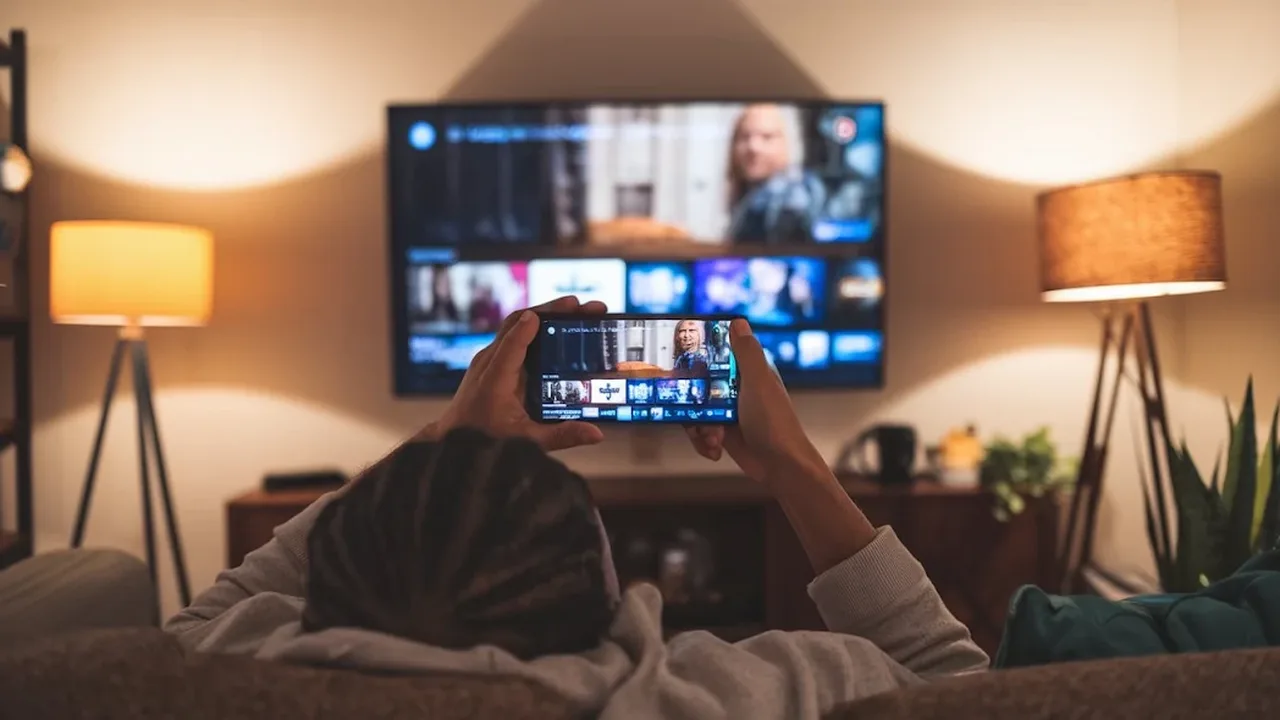
Casting sends the programme from your phone to the television while the phone stays in your hand as the controller. The picture and sound come from the TV, the browsing and choosing stay on the phone, and each device does the job it is better at.
For sport especially, the difference is the room. A match on a television can be shared, heard properly and watched without anyone holding anything, which is how most people actually want to experience a final or a derby.
If you are completely new to the platform, start with Falcon Cast APK for Android TV and Firestick. This guide explains what casting needs, how the connection is made, and what to check when the television refuses to appear.
What Casting Needs to Work
Phone and television must share the same Wi-Fi network. That single condition causes most casting failures, because many homes run two networks, a main one and a guest or extender one, and devices on different networks cannot see each other.
The television needs a casting receiver: a built in Chromecast or Android TV system, a Chromecast device plugged into an HDMI port, or a streaming stick with receiving support. If the TV is older, the plugged in device is usually the simplest answer.
Keep the router reasonably close or well connected to the TV for live sport. Casting is a local stream across your own network, and a television at the weak edge of the Wi-Fi works hard for every frame of a fast match. The same discipline applies to every Falcon Cast habit: set it up once, test it honestly, and let the routine carry the rest.
Making the Connection, Step by Step
Start the programme on the phone first and let it play for a few seconds. Playing content casts more reliably than a paused menu, because the app has an active stream to hand over to the television.
Tap the cast icon, choose your television from the list, and give it several seconds. The TV may show a loading screen before the picture arrives, and interrupting that pause with repeated taps is the most common way people break a connection that was about to succeed.
Once connected, test the controls: pause, resume and volume from the phone. Confirming control during a quiet moment means you are not learning the remote layout during the moment everyone in the room cares about. Viewers who treat Falcon Cast as their main screen tend to build these small systems quickly, and their evenings run smoother for it.
Casting, profiles and favourites share one purpose: removing friction between a person and a programme. None of them changes what is available to watch. All of them change how much of your evening is spent watching rather than arranging, which over a year is the larger prize.
When the Television Does Not Appear
Restart the Wi-Fi on the phone, then restart the television fully, not just into standby. Many televisions keep their network half awake in standby for months, and a full restart is the single most effective fix in this entire guide.
Check both devices are on the same network name, character for character. A phone that auto connected to the extender network and a TV on the main router are strangers to each other even in the same room. Install Falcon Cast on Android TV covers the related app side faults if the TV appears but playback itself fails. For the neighbouring topic, see Falcon Cast Common Errors and Fixes.
Turn off any VPN on the phone while casting. A VPN can hide the local network from the app, which removes the television from the list even though everything else about the connection looks healthy. None of this requires the highest Falcon Cast settings; the clearest picture is often the one your connection can hold without effort.
Picture Quality When Casting
The television shows the stream the phone sends or requests, so the quality setting on the phone still matters. On a large screen, the difference between moderate and high quality becomes visible, especially in grass detail and fast camera pans during sport.
If the picture stutters only when casting, suspect the local network before the internet. Another device starting a large download on the same Wi-Fi can starve the local stream even when your internet package is generous.
Wiring the television or its streaming device to the router with a cable, where that is possible, is the most reliable upgrade in home streaming. It removes the weakest radio link from the chain entirely. When something looks wrong, the right response is a smaller Falcon Cast test and a calmer check, never a pile of random changes.
Streaming quality is a negotiation between the picture you want and the connection you have, and the negotiation restarts every time the household's other screens wake up. A film night with one television is a different negotiation from a tournament evening with four devices, and treating them the same is how good connections earn bad reputations.
Ending a Session Cleanly
Stop casting from the phone before closing the app or leaving the house with the phone. A television left holding a cast session can sit on a frozen frame, and the next person to use the TV inherits a small mystery.
Disconnecting properly also frees the phone. A phone that still believes it is casting may route volume oddly or keep the app awake, which shows up later as mysterious battery drain.
Casting is a convenience, not a commitment. Set it up once with care, learn the two fixes that solve almost everything, same network and full restarts, and it becomes the way the whole household prefers to watch. Falcon Cast cannot fix a weak connection for you, but it can show you exactly how much connection your viewing really needs.
Final Thoughts
How casting from an Android phone to a TV works, what you need on the same network, and how to fix the common problems when the TV does not appear.
Keep the setup simple, test changes one at a time, and let the routine you build carry your viewing. Falcon Cast rewards prepared viewers with calm evenings, and calm evenings are the entire point of a streaming app.